
使用Python做一个文档转化器的代码实现
2人参与 • 2026-02-01 • Python
一、项目概况
python 文档转换器项目旨在通过 python 技术实现多种文档格式之间的自动化转换,解决不同格式文件在跨平台、跨应用场景下的兼容性问题。项目核心目标是提供高效、稳定、易用的文档转换能力,支持常见办公格式(如 pdf、word、excel、markdown 等)的相互转换,并通过功能扩展满足更复杂的文档处理需求。
二、核心功能与技术实现
2.1、格式转化能力
- 支持pdf 与 word、html、markdown、纯文本的双向转换,通过 libreoffice、wkhtmltopdf 等工具实现格式解析与重构。
- 覆盖文本类格式(markdown、html、txt) 的相互转换,利用 pandoc 等开源工具处理复杂排版。
- 扩展支持图像格式(如 png/jpg)、电子表格(xlsx/csv) 等格式的初步转换框架(可通过插件机制进一步完善)。
2.2、性能优化与架构设计
- 采用多线程处理(threadpoolexecutor) 实现批量转换,通过异步任务队列避免主线程阻塞,提升大文件或批量任务的处理效率。
- 基于命令行工具集成(如 libreoffice、pandoc)构建转换核心,结合 python 代码实现流程控制与错误处理。
- 设计插件式架构,通过
supported_formats字典注册转换方法,便于后续扩展新格式。
2.3、用户交互与工程化
- 提供web 界面(flask 框架) 和命令行接口,支持文件上传、下载及进度查询。
- 实现错误捕获与日志系统,记录转换过程中的异常与执行详情,便于调试和维护。
三、项目亮点与创新点
3.1、灵活性与扩展性
- 通过模块化设计将格式转换逻辑解耦,新增格式支持时只需添加对应的转换方法,无需修改核心架构。
- 支持自定义转换参数(如 pdf 清晰度、文档编码等),满足个性化需求。
3.2、工程化与稳定性
- 引入临时文件管理和资源释放机制,避免转换过程中产生垃圾文件或内存泄漏。
- 集成外部工具调用的健壮性校验,通过
subprocess模块捕获命令执行结果,防止因第三方工具异常导致程序崩溃。
3.3、用户体验优化
- web 界面提供任务队列管理和进度实时反馈,批量转换时支持暂停、取消操作。
- 自动生成标准化输出路径,避免文件覆盖冲突,并支持转换结果预览。
四、如何实现
4.1 、环境准备:安装该功能需要的依赖库
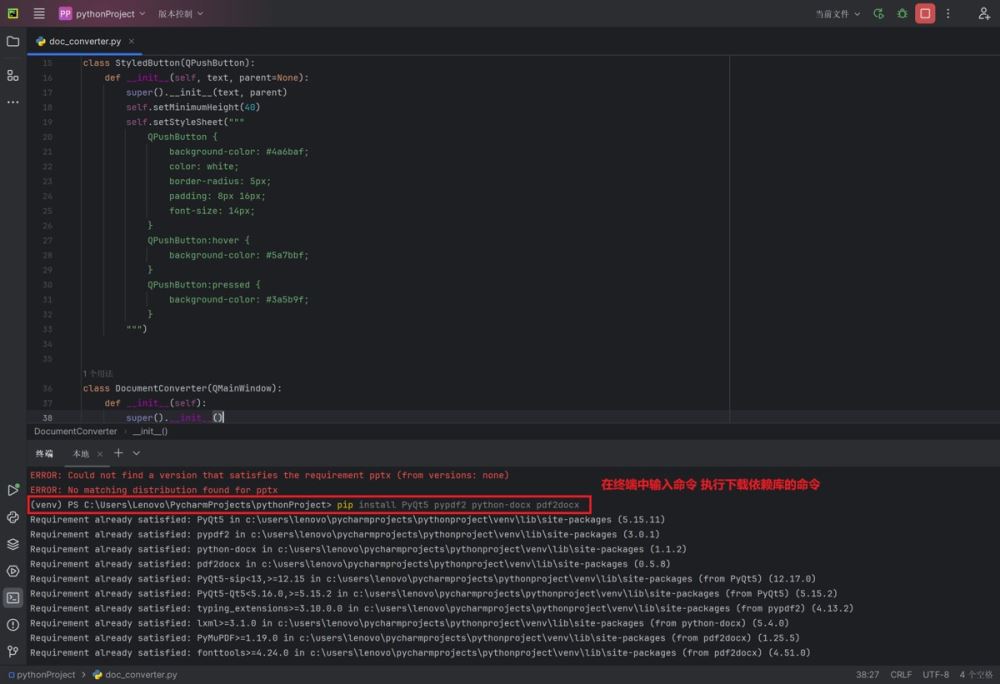
在终端使用以下命令下载依赖库
pip install pyqt5 pypdf2 python-docx pdf2docx
如下图所示
4.2、实现代码
主要实现代码如下:
import os
import sys
from pyqt5.qtwidgets import (qapplication, qmainwindow, qfiledialog, qmessagebox,
                             qtablewidget, qtablewidgetitem, qlabel, qpushbutton,
                             qcombobox, qwidget, qvboxlayout, qhboxlayout, qframe,
                             qprogressbar, qheaderview)
from pyqt5.qtcore import qt, qsize
from pyqt5.qtgui import qfont, qicon, qcolor
from docx import document
from docx2pdf import convert
from pdf2docx import converter
from pypdf2 import pdfreader


class styledbutton(qpushbutton):
    def __init__(self, text, parent=none):
        super().__init__(text, parent)
        self.setminimumheight(40)
        self.setstylesheet("""
            qpushbutton {
                background-color: #4a6baf;
                color: white;
                border-radius: 5px;
                padding: 8px 16px;
                font-size: 14px;
            }
            qpushbutton:hover {
                background-color: #5a7bbf;
            }
            qpushbutton:pressed {
                background-color: #3a5b9f;
            }
        """)


class documentconverter(qmainwindow):
    def __init__(self):
        super().__init__()
        self.initui()
        self.last_dir = os.path.expanduser("~")
        self.files = []
        self.save_dir = ""

    def initui(self):
        self.setwindowtitle("文档转换器")
        self.setminimumsize(1000, 700)
        self.setwindowicon(qicon.fromtheme("document-convert"))

        # 主窗口样式
        self.setstylesheet("""
            qmainwindow {
                background-color: #f5f7fa;
            }
            qlabel {
                color: #333;
                font-size: 14px;
            }
            qtablewidget {
                background-color: white;
                border: 1px solid #ddd;
                border-radius: 5px;
                gridline-color: #eee;
            }
            qheaderview::section {
                background-color: #4a6baf;
                color: white;
                padding: 8px;
                border: none;
            }
            qcombobox {
                padding: 5px;
                border: 1px solid #ddd;
                border-radius: 4px;
                min-width: 120px;
            }
        """)

        # 主布局
        main_widget = qwidget()
        self.setcentralwidget(main_widget)
        main_layout = qvboxlayout(main_widget)
        main_layout.setcontentsmargins(20, 20, 20, 20)
        main_layout.setspacing(15)

        # 标题区域
        title_frame = qframe()
        title_layout = qhboxlayout(title_frame)
        title_layout.setcontentsmargins(0, 0, 0, 0)

        title_label = qlabel("📄 文档格式转换工具")
        title_label.setstylesheet("font-size: 24px; font-weight: bold; color: #2c3e50;")
        title_layout.addwidget(title_label)
        title_layout.addstretch()

        main_layout.addwidget(title_frame)

        # 控制面板
        control_frame = qframe()
        control_frame.setstylesheet("background-color: white; border-radius: 8px; padding: 15px;")
        control_layout = qhboxlayout(control_frame)

        # 转换类型
        type_label = qlabel("转换类型:")
        self.conversion_type = qcombobox()
        self.conversion_type.additems(["word转pdf", "pdf转word"])
        self.conversion_type.setfixedwidth(200)

        # 添加文件按钮
        self.add_file_btn = styledbutton("➕ 添加文件")
        self.add_file_btn.clicked.connect(self.add_files)

        # 保存位置
        save_label = qlabel("保存到:")
        self.save_location = qcombobox()
        self.save_location.additems(["源文件夹", "选择其他目录"])
        self.save_location.currentindexchanged.connect(self.select_save_dir)

        control_layout.addwidget(type_label)
        control_layout.addwidget(self.conversion_type)
        control_layout.addspacing(20)
        control_layout.addwidget(self.add_file_btn)
        control_layout.addspacing(20)
        control_layout.addwidget(save_label)
        control_layout.addwidget(self.save_location)
        control_layout.addstretch()

        main_layout.addwidget(control_frame)

        # 文件表格
        self.file_table = qtablewidget()
        self.file_table.setcolumncount(5)
        self.file_table.sethorizontalheaderlabels(["文件名", "页数", "输出范围", "状态", "操作"])
        self.file_table.horizontalheader().setsectionresizemode(0, qheaderview.stretch)
        self.file_table.setcolumnwidth(1, 100)
        self.file_table.setcolumnwidth(2, 150)
        self.file_table.setcolumnwidth(3, 150)
        self.file_table.setcolumnwidth(4, 250)
        self.file_table.verticalheader().setvisible(false)
        self.file_table.setselectionbehavior(qtablewidget.selectrows)
        self.file_table.setedittriggers(qtablewidget.noedittriggers)

        main_layout.addwidget(self.file_table)

        # 底部面板
        bottom_frame = qframe()
        bottom_layout = qhboxlayout(bottom_frame)

        # 进度条
        self.progress_bar = qprogressbar()
        self.progress_bar.setrange(0, 100)
        self.progress_bar.settextvisible(false)
        self.progress_bar.setstylesheet("""
            qprogressbar {
                border: 1px solid #ddd;
                border-radius: 5px;
                height: 10px;
            }
            qprogressbar::chunk {
                background-color: #4a6baf;
                border-radius: 4px;
            }
        """)

        # 转换按钮
        self.convert_btn = styledbutton("🚀 开始转换")
        self.convert_btn.setfixedwidth(150)
        self.convert_btn.clicked.connect(self.start_conversion)

        bottom_layout.addwidget(self.progress_bar)
        bottom_layout.addspacing(20)
        bottom_layout.addwidget(self.convert_btn)

        main_layout.addwidget(bottom_frame)

    def add_files(self):
        file_filter = "word文件 (*.docx *.doc)" if self.conversion_type.currentindex() == 0 else "pdf文件 (*.pdf)"
        files, _ = qfiledialog.getopenfilenames(self, "选择文件", self.last_dir, file_filter)

        if files:
            self.last_dir = os.path.dirname(files[0])
            for file in files:
                if file not in [f['path'] for f in self.files]:
                    self.add_file_to_table(file)

    def add_file_to_table(self, file_path):
        try:
            page_count = self.get_page_count(file_path)
            self.files.append({
                'path': file_path,
                'pages': page_count,
                'range': f"1-{page_count}",
                'status': "等待转换"
            })

            row = self.file_table.rowcount()
            self.file_table.insertrow(row)

            # 文件名
            self.file_table.setitem(row, 0, qtablewidgetitem(os.path.basename(file_path)))

            # 页数
            self.file_table.setitem(row, 1, qtablewidgetitem(str(page_count)))

            # 输出范围
            range_item = qtablewidgetitem(f"1-{page_count}")
            range_item.setflags(range_item.flags() | qt.itemiseditable)
            self.file_table.setitem(row, 2, range_item)

            # 状态
            self.file_table.setitem(row, 3, qtablewidgetitem("等待转换"))

            # 操作按钮
            delete_btn = styledbutton("删除")
            delete_btn.setstylesheet("background-color: #e74c3c;")
            delete_btn.clicked.connect(lambda _, r=row: self.remove_file(r))

            btn_widget = qwidget()
            btn_layout = qhboxlayout(btn_widget)
            btn_layout.addwidget(delete_btn)
            btn_layout.setcontentsmargins(0, 0, 0, 0)

            self.file_table.setcellwidget(row, 4, btn_widget)

        except exception as e:
            qmessagebox.warning(self, "错误", f"无法读取文件: {str(e)}")

    def get_page_count(self, file_path):
        if self.conversion_type.currentindex() == 0:  # word转pdf
            doc = document(file_path)
            return len(doc.paragraphs)
        else:  # pdf转word
            with open(file_path, 'rb') as f:
                pdf = pdfreader(f)
                return len(pdf.pages)

    def remove_file(self, row):
        self.file_table.removerow(row)
        del self.files[row]

    def select_save_dir(self):
        if self.save_location.currentindex() == 1:
            dir_path = qfiledialog.getexistingdirectory(self, "选择保存目录", self.last_dir)
            if dir_path:
                self.save_dir = dir_path

    def start_conversion(self):
        if not self.files:
            qmessagebox.warning(self, "警告", "请先添加要转换的文件")
            return

        total_files = len(self.files)
        self.progress_bar.setmaximum(total_files)

        for i, file_info in enumerate(self.files):
            try:
                self.file_table.item(i, 3).settext("转换中...")
                self.progress_bar.setvalue(i + 1)
                qapplication.processevents()

                input_path = file_info['path']
                output_dir = os.path.dirname(input_path) if self.save_location.currentindex() == 0 else self.save_dir
                output_name = os.path.splitext(os.path.basename(input_path))[0]

                if self.conversion_type.currentindex() == 0:  # word转pdf
                    output_path = os.path.join(output_dir, f"{output_name}.pdf")
                    convert(input_path, output_path)
                else:  # pdf转word
                    output_path = os.path.join(output_dir, f"{output_name}.docx")
                    cv = converter(input_path)
                    cv.convert(output_path, start=0, end=none)
                    cv.close()

                self.file_table.item(i, 3).settext("✅ 转换成功")

                # 更新操作按钮
                btn_widget = qwidget()
                btn_layout = qhboxlayout(btn_widget)

                open_btn = styledbutton("打开")
                open_btn.setstylesheet("background-color: #2ecc71;")
                open_btn.clicked.connect(lambda: os.startfile(output_path))

                open_dir_btn = styledbutton("打开目录")
                open_dir_btn.setstylesheet("background-color: #3498db;")
                open_dir_btn.clicked.connect(lambda: os.startfile(output_dir))

                delete_btn = styledbutton("删除")
                delete_btn.setstylesheet("background-color: #e74c3c;")
                delete_btn.clicked.connect(lambda _, r=i: self.remove_file(r))

                btn_layout.addwidget(open_btn)
                btn_layout.addwidget(open_dir_btn)
                btn_layout.addwidget(delete_btn)
                btn_layout.setcontentsmargins(0, 0, 0, 0)

                self.file_table.setcellwidget(i, 4, btn_widget)

            except exception as e:
                self.file_table.item(i, 3).settext(f"❌ 转换失败: {str(e)}")

        # 显示转换完成提示
        msg = qmessagebox(self)
        msg.setwindowtitle("转换完成")
        msg.settext("所有文件转换完成!")
        msg.setstandardbuttons(qmessagebox.open | qmessagebox.ok)
        msg.setdefaultbutton(qmessagebox.open)
        ret = msg.exec_()

        if ret == qmessagebox.open:
            os.startfile(output_dir if self.save_location.currentindex() == 0 else self.save_dir)


if __name__ == "__main__":
    app = qapplication(sys.argv)
    app.setstyle("fusion")
    converter = documentconverter()
    converter.show()
    sys.exit(app.exec_())
五、实现效果展示
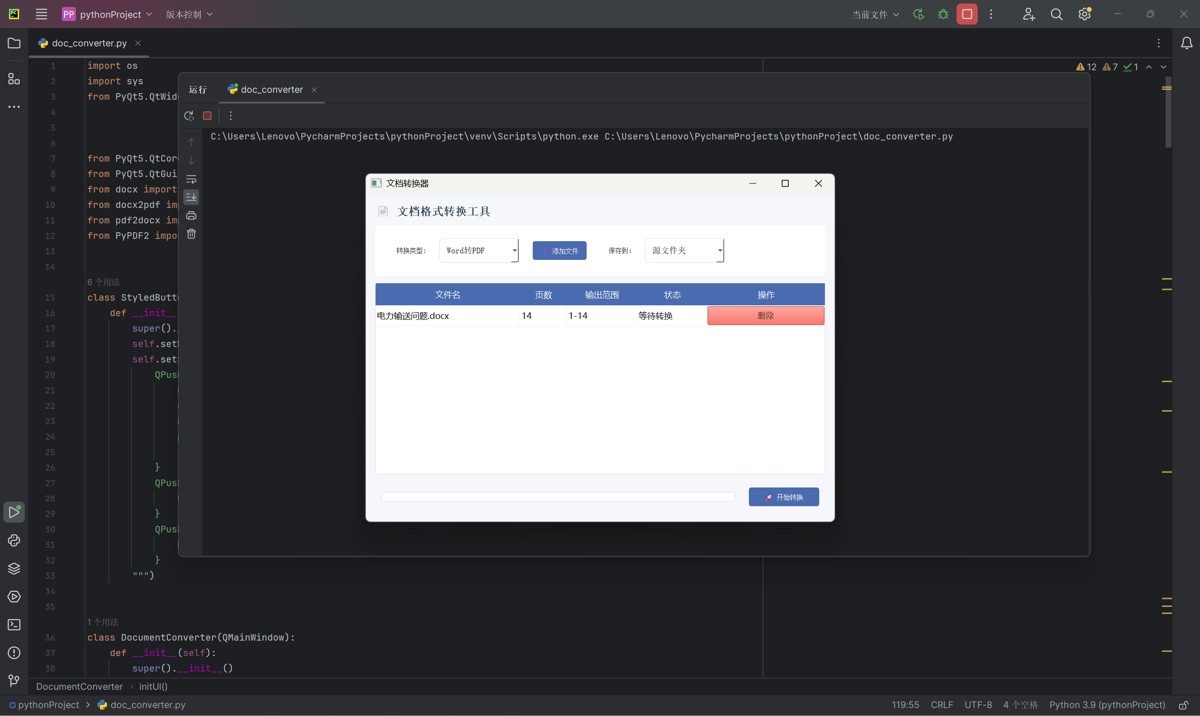
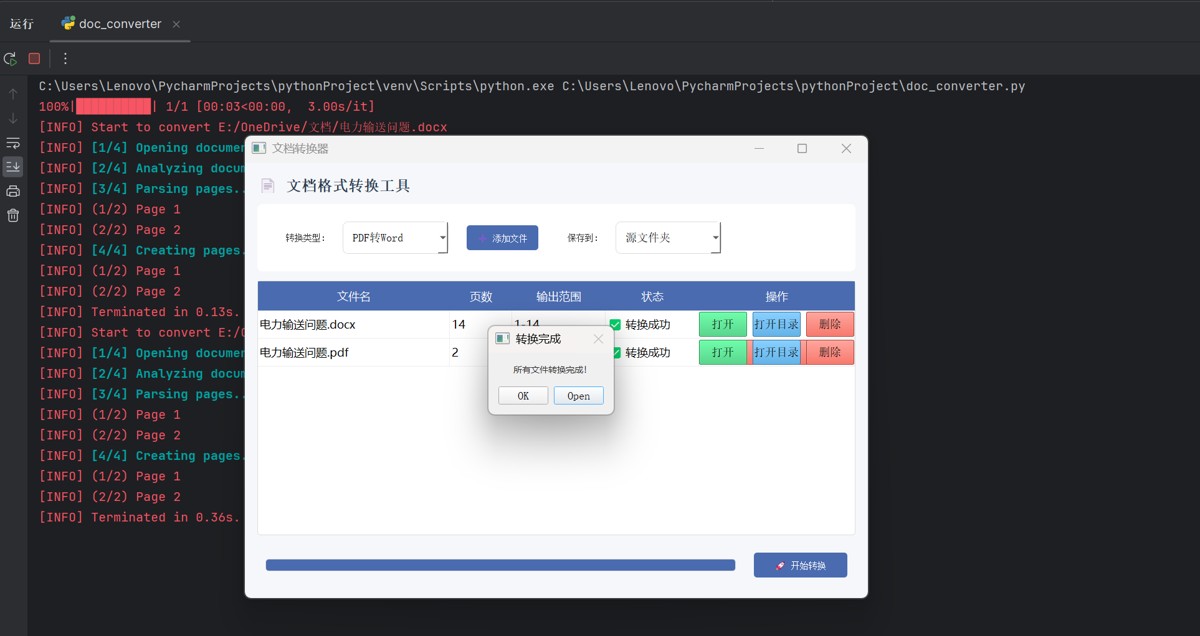
运行代码之后就会跳出这个功能的页面
如图,这个功能可以选择word转pdf或者pdf转word,添加你需要转化的文件以及可以选择转化之后的文件目录
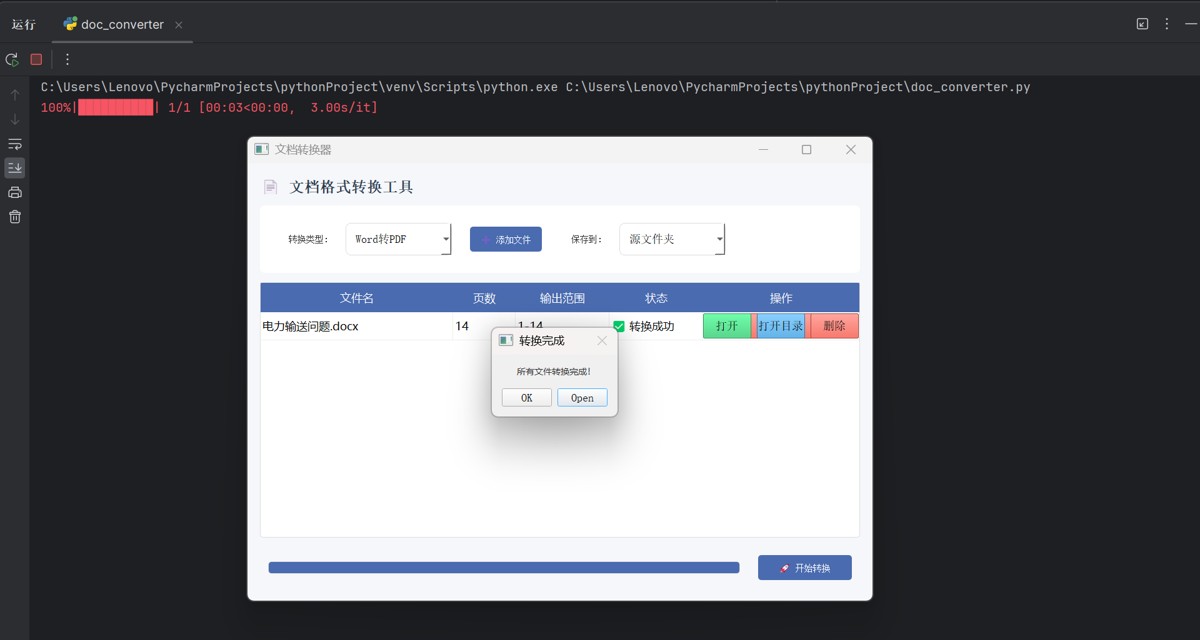
我们可以看到,转化成功之后的后端是显示的,页面还可以选择是否打开文件
打开文件相对的目录就可以看到我们转化成功之后的目录了

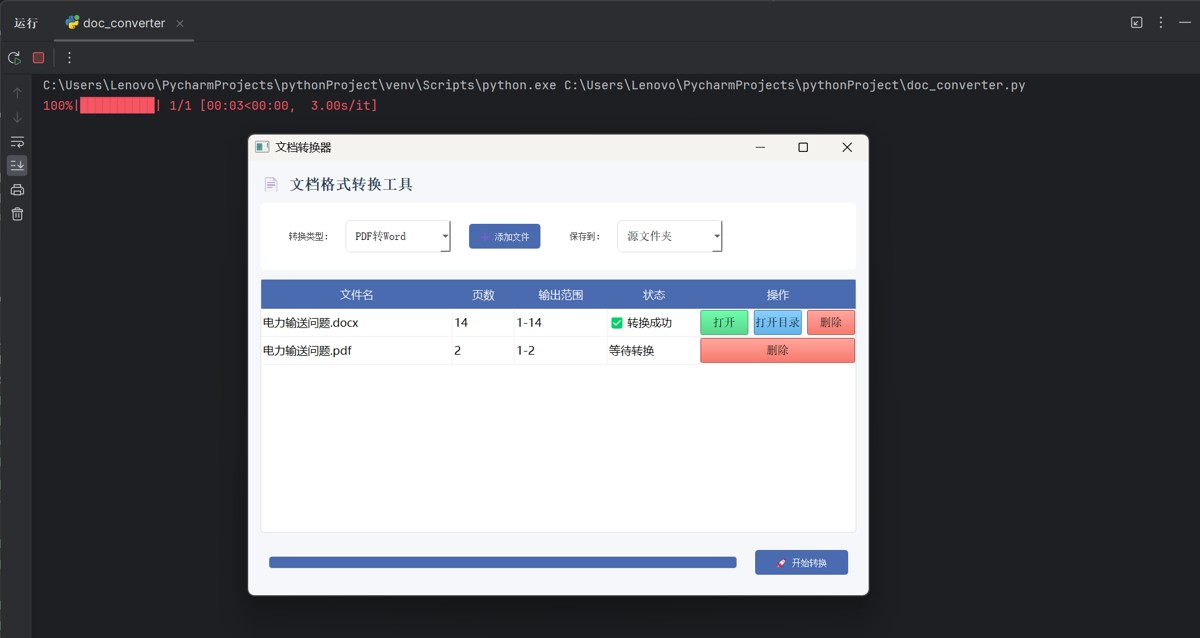
pdf转word也是可以的
六、未来优化方向
6.1、功能扩展
- 集成ocr 引擎(如 tesseract) 实现扫描文档的文字识别与转换。
- 添加文档加密、水印、签名等安全功能,支持敏感文件的权限控制。
- 开发文档合并、分割、压缩模块,完善文档处理全流程能力。
6.2、性能与稳定性提升
- 引入gpu 加速优化图像类文档转换(如 pdf 中的图片压缩)。
- 实现缓存机制,对相同文件的重复转换直接读取缓存结果,减少资源消耗。
6.3、工程化与生态整合
- 开发docker 镜像简化部署,支持云服务(如 aws lambda、阿里云函数计算)的 serverless 化部署。
- 开放rest api 接口,便于与 oa 系统、云存储服务(如 onedrive、google drive)集成。
七、项目价值与应用场景
7.1、企业办公场景
帮助企业实现文档格式的标准化处理,提升跨部门协作效率(如合同、报表的批量转换)。
7.2、教育与出版领域
支持学术论文、电子书的多格式输出(如 markdown 转 pdf/epub),适配不同阅读设备。
7.3、个人生产力工具
为创作者提供便捷的文档格式转换能力,减少手动处理时间(如博客文章转 html/pdf)。
八、项目总结
python 文档转换器项目通过整合开源工具与 python 编程优势,构建了一个功能完整、可扩展的文档处理框架。项目不仅解决了基础格式转换需求,还通过工程化设计为后续功能迭代奠定了基础。未来可结合 ai 技术(如文档智能解析、自动排版)进一步提升转换质量,成为兼具实用性与技术前瞻性的文档处理解决方案。
以上就是使用python做一个文档转化器的代码实现的详细内容,更多关于python文档转化器的资料请关注代码网其它相关文章!
赞 (0)
您想发表意见!!点此发布评论





发表评论