
Windows下Git Bash终端高效配置指南
18人参与 • 2026-03-31 • Windows
引言
作为习惯 linux 命令行的开发者,windows 自带的 powershell 或 cmd 常常让人感到操作割裂——不仅命令语法差异大,缺乏常用工具链,更让人头疼的是路径适配问题(比如频繁误将 linux 下的 ~ 家目录符号用在 windows 中,导致创建 c:/users/用户名/~/xxx 这类无效路径)。而 git bash 作为基于 mingw 的开发环境,不仅内置 vim 编辑器和绝大多数 linux 核心命令,还能完美兼容 windows 文件系统,将其配置为默认终端后,可大幅提升文件操作、开发调试的效率。本文将详细介绍 git bash 的安装、终端配置、问题解决及实用技巧,帮你在 windows 上无缝衔接 linux 操作习惯。
一、git bash 是什么?为什么选择它?
1. 关于 git bash
git bash 源自 mingw(minimalist gnu for windows),是一个专为 windows 平台设计的开发环境。它不仅包含 git 版本控制工具,还集成了 gcc 编译器、gnu binutils 等开发组件,更重要的是提供了完整的 linux 命令行环境——ls、cd、grep、awk 等常用命令均可直接使用,无需额外配置。
2. 选择 git bash 的核心原因
- 命令习惯无缝迁移:对于熟悉 linux/macos 终端的用户,无需重新学习 powershell/cmd 语法,直接复用已有命令经验;
- 工具链齐全:内置 vim 编辑器、git 版本控制以及 grep、sed、awk 等数据处理工具,基本满足日常开发需求;
- 跨平台操作一致性:在 windows 上模拟 linux 环境,避免因系统差异导致的命令兼容性问题(如脚本运行、路径处理);
- 轻量高效:无需安装笨重的虚拟机或 wsl,启动速度快,资源占用低。
二、准备工作:git bash 安装
windows 平台直接下载官方安装包即可,步骤简单:
- 下载地址:git for windows 官网(根据系统位数选择 32/64 位版本);
- 安装流程:双击安装包后,默认选项即可完成安装(如需自定义安装路径,建议选择无空格、无中文的目录,如
d:\environment\git); - 验证安装:安装完成后,右键桌面或文件夹,若出现「git bash here」选项,说明安装成功。
亦可通过 scoop 等包管理器便捷安装 git
三、核心配置:将 git bash 设为默认终端
无论是系统级的 windows terminal,还是开发常用的 vscode,都可将 git bash 配置为默认终端,实现全局统一的操作体验。
3.1 windows terminal 配置
windows terminal 支持图形化配置和 json 配置,推荐结合使用:
图形化选择(快速设置):
- 打开 windows terminal,点击顶部菜单栏的「下拉箭头」→「设置」;
- 在「默认终端应用程序」中选择「git bash」,即可快速生效。
json 配置(自定义路径/参数):
若需自定义 git bash 的启动参数或图标,可直接编辑配置文件:
- 打开 windows terminal 设置,点击左侧「打开 json 文件」;
- 在
profiles.list中添加 git bash 配置(需替换路径为你的安装目录):
"defaultprofile": "{c891c3d2-b798-4857-83c0-89bf2ea34021}", // 设为 git bash 的 guid
"profiles": {
    "defaults": {},
    "list": [
        {
            "commandline": "d:\\environment\\git\\bin\\bash.exe --login -i", // 关键参数:--login -i
            "guid": "{c891c3d2-b798-4857-83c0-89bf2ea34021}", // 可自定义 guid(需唯一)
            "name": "git bash",
            "icon": "d:\\program_files\\git\\mingw64\\share\\git\\git-for-windows.ico" // 图标路径
        }
    ]
}- 关键说明:
--login -i参数用于强制加载 git bash 的配置文件(如~/.bash_profile),避免后续配置不生效(详见 「四、常见问题」)。
3.2 vscode 配置
通过 profiles 配置,参考 vscode 官方文档:
- 打开 vscode,按
ctrl + ,打开设置,搜索「terminal.integrated.profiles.windows」; - 点击「在 settings.json 中编辑」,添加以下配置(替换路径为你的实际路径):
// 自动化脚本终端(如任务运行)
"terminal.integrated.automationshell.windows": "d:\\environment\\git\\bin\\bash.exe",
// 终端配置列表
"terminal.integrated.profiles.windows": {
    "powershell": {
        "path": "c:\\program files\\powershell\\7-preview\\pwsh.exe",
        "icon": "terminal-powershell",
        "args": ["-nologo"] // 隐藏启动时的 logo 输出
    },
    "command prompt": {
        "path": ["${env:windir}\\sysnative\\cmd.exe", "${env:windir}\\system32\\cmd.exe"],
        "icon": "terminal-cmd"
    },
    "bash": {
        "path": ["d:\\environment\\git\\bin\\bash.exe"], // git bash 路径
        "icon": "terminal-bash",
        "args": ["-i", "-l"] // 加载配置文件
    }
},
// 设置 git bash 为默认终端
"terminal.integrated.defaultprofile.windows": "bash"
也可以通过图形化:
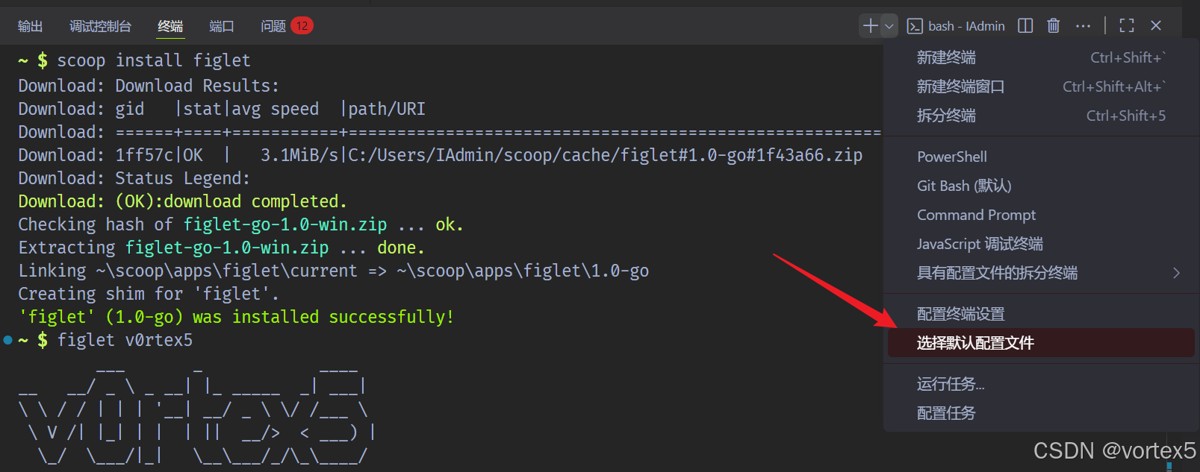
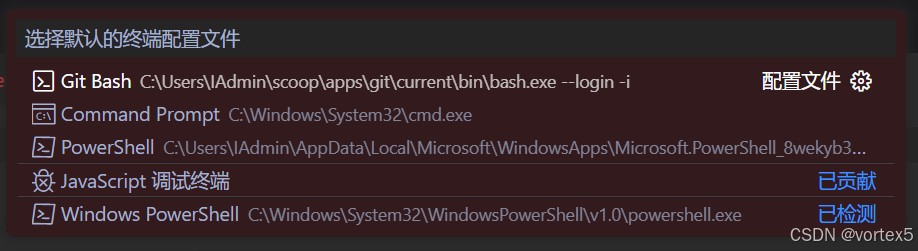
- 验证:按 `ctrl + `` 打开终端,若默认启动 git bash,则配置成功。
以下是将「删除到头窗口闪烁」的解决方案整合到 4.2 节点后的完整内容,保持和其他小节一致的格式、风格与逻辑:
四、常见配置问题及解决方案
4.1~/.bashrc配置文件不加载
- 问题现象:在 windows terminal 或 vscode 中启动 git bash 后,自定义的别名、环境变量未生效;
- 原因:git bash 在 windows 平台默认仅加载
~/.bash_profile,且非登录模式下不会触发; - 解决方案:
- 启动参数添加
--login -i(已在第三节配置中包含),强制以登录模式启动,加载~/.bash_profile; - 若习惯在
~/.bashrc中配置别名(linux 常见习惯),可在~/.bash_profile中添加一行:
- 启动参数添加
source ~/.bashrc # 加载 .bashrc 中的配置
- 注意:windows 中 git bash 的
~对应路径为c:\users\你的用户名,切勿手动在路径中添加~符号(如c:/users/用户名/~/xxx是无效路径)。
4.2 退格删到头时窗口闪烁
- 问题现象:在 windows terminal 中使用 git bash,按退格键删除到输入行开头时,终端窗口/光标出现明显闪烁;
- 原因:git bash 依赖的 gnu readline 库检测到「行首退格」的非法操作,会向终端发送 ascii bel 响铃指令(\a),windows terminal 默认为静音模式,将响铃替换为「窗口/光标闪烁」的可视化提醒;
- 解决方案:
新建/编辑 readline 配置文件 ~/.inputrc(git bash 中 ~ 对应 c:\users\你的用户名):
vi ~/.inputrc
在文件中添加以下配置,禁用 readline 的响铃触发逻辑:
set bell-style none
保存文件后重启 windows terminal,闪烁问题立即解决;
- 拓展优化(可选):
若想保留「非法操作提醒」但不闪烁,可替换配置为:
set bell-style visual
set visible-bell off
也可直接在 windows terminal 全局设置中关闭响铃可视化:打开设置(ctrl+,)→「全局」→「高级」→「响铃行为」→ 选择「无」。
4.3 终端前缀冗余
- 问题现象:默认终端前缀显示
user@hostname mingw64,丑丑的还没啥用; - 解决方案:自定义提示符或使用美化插件:
方案1:手动自定义 ps1 提示符(轻量无依赖)
打开 git bash,编辑 ~/.bash_profile:
vi ~/.bash_profile
添加以下配置(按需选择样式,可自定义颜色/显示内容):
# 样式1:极简风格(仅显示当前文件夹 + git 分支,绿色)
export ps1="\[\e[32;1m\]\w\[\e[33m\]\$(parse_git_branch)\[\e[0m\] $ "
# 样式2:全路径 + 时间 + git 分支(多信息版)
# export ps1="\[\e[36m\]\t \[\e[32m\]\w\[\e[33m\]\$(parse_git_branch)\[\e[0m\] $ "
# 样式3:隐藏冗余信息,仅保留符号提示符(极简到极致)
# export ps1="> "
生效配置:
source ~/.bash_profile
符号/颜色说明:
\w:仅显示当前文件夹名;\w:显示完整路径;\t:显示当前时间(hh:mm:ss);\e[32;1m:绿色高亮;\e[33m:黄色;\e[36m:青色;\e[0m:重置颜色(避免后续文字变色);- 可替换颜色码:31(红)、34(蓝)、35(紫)、40-47(背景色)。
方案2:使用 starship 美化提示符(推荐,功能丰富)
starship 是跨 shell 的高颜值提示符工具,支持 git 状态、环境信息、图标等,适配 windows terminal 效果更佳。
安装 starship(git bash 中执行):
# 下载并安装 starship(windows 版)
curl -ss https://starship.rs/install.sh | sh -s -- --force
配置 starship 生效:
编辑 ~/.bash_profile,添加以下内容:
# 启用 starship 提示符(兼容 git bash)
eval "$(starship init bash)"
新建 starship 配置文件(自定义样式):
# 新建配置文件(默认路径:~/.config/starship.toml)
mkdir -p ~/.config && vi ~/.config/starship.toml
添加基础配置(示例为精简风格):
# 禁用默认的冗余前缀,仅保留核心信息 format = """ [](blue) $directory [](blue) $git_branch $git_status $character """ # 目录显示配置(仅显示最后一级,带图标) [directory] truncation_length = 1 truncate_to_repo = true icon = "📁" style = "green bold" # git 分支配置 [git_branch] icon = "" style = "yellow bold" # git 状态(未提交/未推送等) [git_status] style = "red bold" disabled = false # 提示符结尾字符 [character] success_symbol = "➜ " error_symbol = "✗ " style = "white bold" # 禁用不必要的模块(减少冗余) [hostname] disabled = true [username] disabled = true [mingw] disabled = true
生效配置:
source ~/.bash_profile
优化补充:
- windows terminal 需安装 nerd font 字体(如
meslolgs nf),否则图标会显示乱码:下载地址 https://www.nerdfonts.com/font-downloads,安装后在 windows terminal 中设置 git bash 的字体为meslolgs nf; - 更多 starship 配置可参考官网:https://starship.rs/config/。
4.4 中文乱码问题
- 问题现象:终端显示中文文件名为问号,或
git status中文路径乱码; - 解决方案:
- git bash 自身配置:
- 右键 git bash 窗口 →「options」→「text」;
- 设为
locale: zh_cn、character set: utf-8,点击「save」;
- git 配置:在终端输入以下命令,解决
git status中文乱码:
- git bash 自身配置:
git config --global core.quotepath false
- windows terminal/vscode 配置:确保 git bash 启动参数未指定其他字符集,保持 utf-8 编码(默认已兼容)。
补充说明
- 所有配置文件(
.bashrc/.bash_profile/.inputrc)均为 git bash 侧的配置,而非 windows terminal 本身的配置; - 若修改后未生效,优先检查文件路径是否正确(需放在
c:\users\你的用户名下,无后缀名),且重启 windows terminal 测试。
五、提升效率的实用技巧
5.1 终端中快速打开文件/文件夹
用资源管理器打开当前目录:
start . # 或 explorer .,效果一致
用默认软件打开文件:
start readme.md  # 用记事本/浏览器打开 readme.md
start image.png  # 用图片查看器打开图片
用 vscode 打开当前项目:
- 先将 vscode 的
code.exe路径添加到系统环境变量path(如d:\program_files\microsoft vs code); - 在终端输入:
code . # 打开当前目录下的项目
5.2 资源管理器地址栏快速启动终端
通过地址栏可直接在当前文件夹启动 git bash/vscode,无需手动 cd 路径:
- 打开资源管理器,进入目标文件夹;
- 按
alt + d激活地址栏,输入以下命令:- 启动 git bash:
bash; - 启动 windows terminal:
wt; - 启动 vscode:
code.cmd .(必须加.,否则仅打开 vscode 软件);
- 启动 git bash:
- 回车即可在当前文件夹启动对应终端/软件。
5.3 配置常用别名(提升操作效率)
在 ~/.bashrc 中添加别名,简化高频命令,以下是示例配置:
# 代理配置(加速 github 访问,按需修改端口)
#export http_proxy=http://127.0.0.1:10809
#export https_proxy=http://127.0.0.1:10809

# 快速切换目录
alias blog='cd /e/blog'
alias work='cd /d/work/projects'

# 工具别名
alias tree='tree -fcn'
alias ll='ls -l'
alias grep='grep --color=auto'

# git 缩写别名
alias gst='git status'
alias gco='git checkout'
alias gcb='git checkout -b'
alias gcam='git commit -am'
alias gps='git push'
alias gp='git pull'
alias gsh='git stash'
alias gsl='git stash list'
alias gsp='git stash pop'
alias gb='git branch'
alias gd='git diff'
alias gm='git merge'
alias gaa='git add -a'
alias gl='git log'
配置完成后,输入 source ~/.bashrc 生效,后续即可直接使用别名操作。
六、总结
git bash 为 windows 用户提供了一个轻量、高效的 linux 命令行环境,通过本文的配置,可实现「默认终端统一、配置文件生效、工具链完善、操作习惯无缝迁移」的目标。
无论是日常的文件操作、脚本运行,还是开发中的版本控制、项目调试,git bash 都能大幅降低 windows 与 linux 之间的操作割裂感。结合本文介绍的技巧(如别名配置、工具扩展、地址栏快捷启动),可进一步提升开发效率,让 windows 终端也能拥有 linux 般的流畅体验。
以上就是windows下git bash终端高效配置指南的详细内容,更多关于git bash终端配置的资料请关注代码网其它相关文章!
赞 (0)
您想发表意见!!点此发布评论
发表评论